
How to Check SSD Health: Easy Ways to Test Your Drive
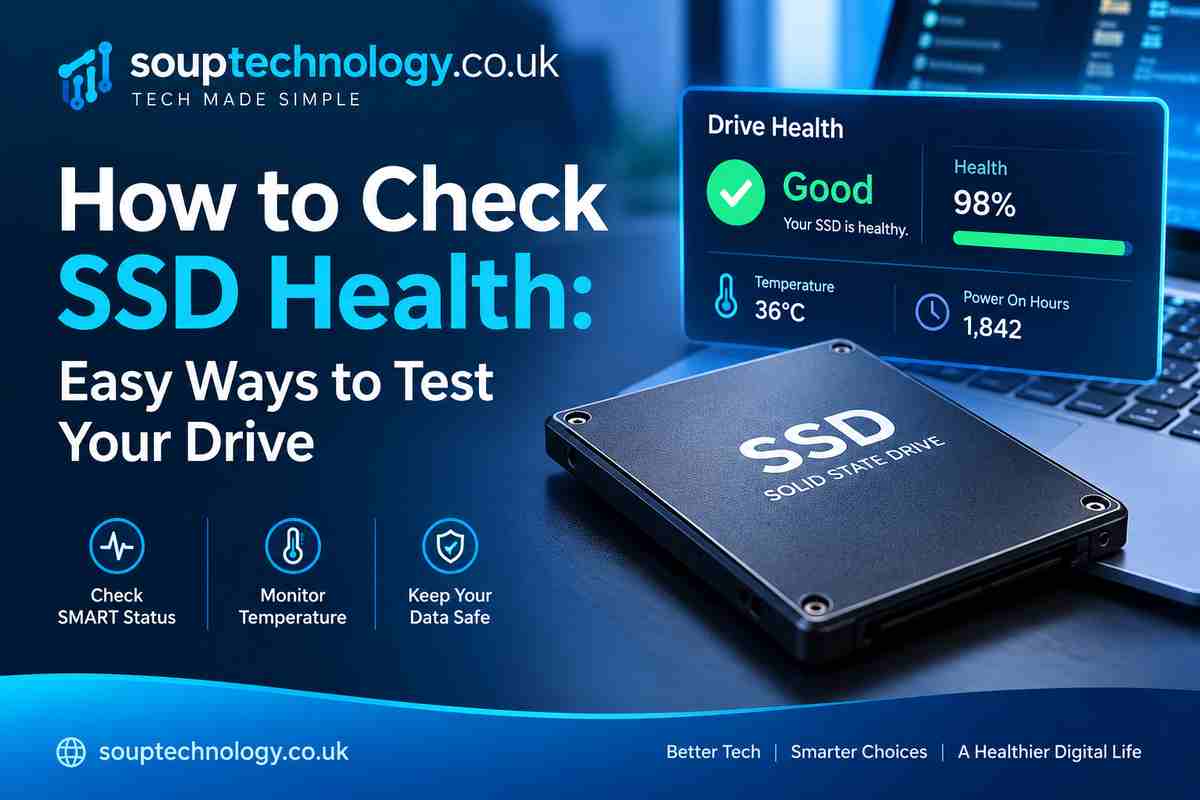
If your laptop or desktop feels slower than usual, checking the SSD is a sensible first step. How to check SSD health depends on your operating system and the SSD manufacturer, but the most reliable approach is to check its S.M.A.R.T. information, health status, temperature, and remaining life. Windows users can start with built-in tools, while manufacturer utilities can provide more detailed information.
Regularly checking storage health is especially useful if you keep important work files, photos, college projects, or business data on your computer.
What SSD Health Actually Means
SSD health is not simply a measure of how much free storage remains. Modern solid-state drives track information about their condition and usage through S.M.A.R.T. (Self-Monitoring, Analysis and Reporting Technology).
Depending on the SSD, you may see details such as:
- Drive health or percentage remaining
- Total data written
- Power-on hours
- Temperature
- Available spare capacity
- Wear or endurance indicators
- Critical warnings
A healthy status is encouraging, but it does not guarantee that an SSD can never fail. It is best to use health information alongside regular backups.
How to Check SSD Health on Windows
Use PowerShell
Windows provides a simple way to view the health status of physical drives.
Open PowerShell as an administrator and run:
Get-PhysicalDisk
Look for the HealthStatus column. Microsoft lists statuses such as Healthy, Warning, Unhealthy, and Unknown.
For a typical working SSD, Healthy is the result you want to see. If Windows reports a warning or unhealthy status, back up important files before troubleshooting further.
Use CHKDSK for File-System Problems
CHKDSK is useful, but it is important to understand what it does. It checks the file system and file-system metadata for logical and physical errors; it is not a complete replacement for reading SSD S.M.A.R.T. data.
For example, you can open Command Prompt as administrator and run:
chkdsk C:
This can help identify file-system issues if Windows is showing errors, crashes, or unusual drive behaviour.
Check SSD Health With Manufacturer Software
For a more detailed assessment, use the utility supplied by your SSD manufacturer. These programs can often display S.M.A.R.T. attributes, drive temperature, firmware information, performance, and estimated remaining life.
For example, Samsung Magician includes an S.M.A.R.T. check and can show information such as power-on hours and other drive-health indicators.
This approach is particularly useful when Windows reports a general status but you want more detail about the drive’s actual wear.
Samsung Magician official software
Signs Your SSD May Need Attention
A declining SSD does not always announce itself clearly. Watch for repeated system freezes, corrupted files, unexpected crashes, disappearing drives, unusually slow write performance, or health warnings from your operating system or SSD utility.
If an SSD suddenly becomes inaccessible, do not repeatedly stress it with unnecessary scans. First, secure important data if the drive is still readable.
Also remember that performance and health are different things. An SSD may become slower because of limited free space, thermal throttling, outdated firmware, or other system issues without being close to failure.
How Often Should You Check an SSD?
For a normal home or office computer, checking every few months is reasonable. You should also check sooner if you notice crashes, file corruption, unusual temperatures, or other storage-related problems.
More importantly, keep at least one reliable backup of important files. An SSD health reading is a warning system, not a guarantee against sudden failure.
Microsoft Get-PhysicalDisk documentation
FAQs
Is 100% SSD health good?
Yes. A 100% health or life rating generally indicates that the drive has not used a significant portion of its rated endurance. The exact meaning varies by manufacturer.
Does low SSD health mean the drive will fail soon?
Not necessarily. A reduced health percentage indicates wear, but it does not provide an exact failure date. Backups are still essential.
Can CHKDSK check SSD health?
CHKDSK can identify file-system problems, but it does not replace S.M.A.R.T.-based SSD health monitoring.
Should I replace an SSD showing a warning?
If the SSD reports a critical warning, errors, or rapidly declining health, back up your data and consider replacing it. For important systems, it is safer to replace a questionable drive before it becomes inaccessible.
Conclusion
Knowing how to check SSD health can help you identify storage problems before they become serious. Start with Windows’ built-in health information, use S.M.A.R.T. data or the manufacturer’s utility for deeper checks, and pay attention to unusual behaviour. Most importantly, keep your important files backed up—even when your SSD currently reports that everything is healthy.